

Categories
Career

Micro-Sprints

I juggle a lot of tasks. I get distracted easily. I have some tough deadlines. My priorities are constantly being shuffled. My phone and IM messages never stop. This sound like you or someone you know? If so, please read on.

As I get older, and perhaps a bit wiser, I’ve started to fixate on the idea of “doing less but doing it better”. Instead of trying to juggle 9 balls poorly, why not learn to juggle 2 or 3 balls really well? I’ve always admired the productive software development teams that I’ve worked with and their ability to focus on fewer dev tasks but execute them crisply and quickly. Here is a great article that describes the difference between Agile principles versus methodologies: https://dev.to/danwright_dev/focus-on-the-principles-and-not-the-methodology-when-in-an-agile-environment—or-just-be-more-lean-2of7

So…I came across the concept of a “micro-sprint” that is similar, in principle, to an Agile-based team sprint. The idea, as an individual, is to focus on one thing for a short duration of time and fixate on it. This concept has probably been around for ages, but it became a popular topic in the 1980’s when Francesco Cirillo introduced the “pomodoro technique” to the time management community: https://en.wikipedia.org/wiki/Pomodoro_Technique The idea is to focus on one thing for a short burst of work-time, then take a break, then repeat. And you use a simple timer and self-discipline to guide you in your focus.

Wow, this is such a simple method! But, how the heck do I pull off a 25-minute pomodoro sprint? How do I block phone and web distractions from ruining my sprint? Well – I found a few cool applications. The coolest (if you’re on a Mac) is this one: https://heyfocus.com/docs/features/pomodoro-timer/ What I love is that when I start my sprint (custom duration, but I usually go for 30 mins), I can specify what Mac apps and what web-pages are a distraction and then disable access until my sprint is complete. The applications close and re-launch based on the timer. Any attempt to open the distracting app/site and I get a friendly reminder about my current sprint. Heads up, this isn’t a free app. But it has saved me a ton of wasted work hours and has more than paid for itself.

https://tomato-timer.com/ is a simple, free web-based tool to regulate your sprints. It works well in Chrome and integrates with OS X notifications. And it has some pretty cool keyboard shortcuts for controls. It is free, it is cool, check it out!

And if you are on Windows, boom! I just found out that Focus is available in the Microsoft app store. https://www.microsoft.com/en-us/p/focus-10/9nblggh5g2xh?activetab=pivot%3aoverviewtab I have not played with it. I don’t know how well it works. It looks like it is free.

OK, looks like my 25-minute sprint is done. Time to take a quick coffee break and then start my next “pomodoro”!
Categories
Career

What’s in your geek bag?

I travel quite a bit for geek work. I spend way too much time on Alaska Airlines planes and in Marriott hotel rooms. Over the years, lots of very smart co-workers (and fellow travelers) have taught me a lot about what to pack in my geek bag.

I try to be very prepared for travel drama: the 3-day trip that turns into a 5-day trip; the random Spring blizzard; the bored waiting for a delayed flight hellscape; the back of the Uber presentation/demo to a key customer; you get the idea.

I like to pack quality gear and I like to pack it the same way every time in my geek bag. I want to be able to quickly find my cable or device without having to dig around in my bag. Sometimes when I’m super tired, I just don’t have the energy to dig around in my geek bag. Also, I find that when I pack everything the same way every time, I tend to lose less gear!

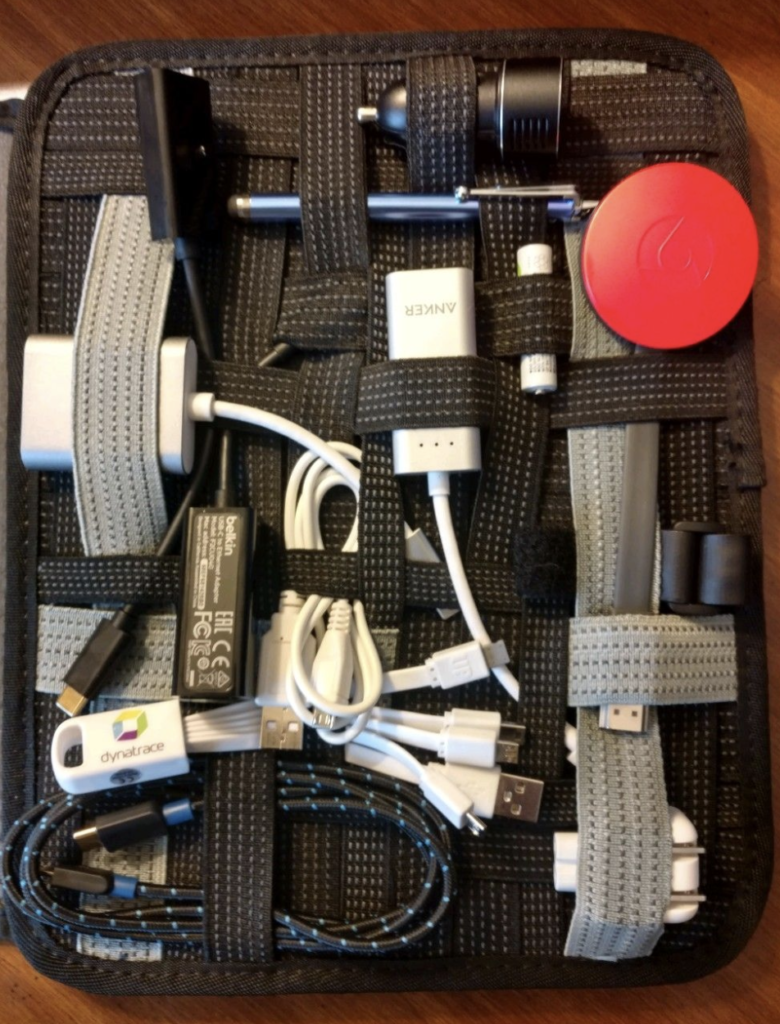
Here’s my typical bag contents:

  • EBags model 5808, laptop backpack
  • Cocoon Grid (for cable management) – https://tinyurl.com/y56rqdtf
  • Laptop (MBP 13”)
  • Apple iPad Pro
  • Anker Portable Battery – https://tinyurl.com/y24bggzm
  • Google Pixel Buds Pro
  • Bose QuietComfort 35 Noise-canceling headphones (amazing)
  • Logitech Spotlight Remote – https://tinyurl.com/y6qtg6nf
  • Compact Travel Surge Protector with USB ports – https://tinyurl.com/3p5pdhrt
  • Small cloth bag with 4 different colors of dry-erase markers (for whiteboards)
  • HDMI display adapter for my laptop
  • 2 charge cables for IPAD (1 usb, 1 usb-c)
  • 2 charge cables for phone (1 usb, 1 usb-c)
  • 12V cigarette lighter USB for rental car
  • 2 x 256 thumb drives (usb, usb-c)
  • Laptop power supply
  • Lens cleaning cloth
  • Sunglasses
  • Small LED headlamp
  • Wallet
  • Corporate Badge (as needed)
  • Pens/Pencils
  • Business cards
  • Tile Pro – hidden in my bag (small insurance policy for stolen bag)
  • Cliff Bar or Kind Bar (never know when you’re going to miss breakfast or lunch)
  • 2 packets of Starbucks Via instant coffee (b/c you never know)
  • Optional / I don’t always bring:
  • Microsoft Bluetooth Arc Mouse (I don’t bring this often, but it is pretty sweet)
  • Pill bottle with (Ibuprofen, immodium, tums, pepto)
  • Double wall water bottle

About bags for work travel:

If you travel for work regularly and especially if you travel by air and/or train – make sure to invest in the highest quality luggage that you can afford. Cheap bags will fail on you when you need them the most. Look for luggage sales, especially during holiday sales at major department stores. Read as many bag reviews as you can.

Categories
Career

Tech Preso Prep Checklist

I thought I’d share my updated checklist that I use when giving tech demos/presentations. I do this several times daily for work and have memorized most of this, but I thought I’d share it with others.

I’ve broken this out for both in-person and virtual presentations. Please add comments and share YOUR tips and tricks.

In Person Meeting Checklist

  1. Get to the meeting location early!
  2. Have your presentation saved to multiple devices (just in case)
  3. If doing an online presentation, make sure you have solid network connectivity. 
  4. If doing a demo, make sure you have an offline version (or video)
  5. Make sure you have the appropriate display adapter (have ‘em all in your geek bag)
  6. Bring your presentation remote (and dongle if applicable)
  7. Connect to projector and make sure things display properly. Advance a few slides and make sure things are looking good.
  8. Disable all OS apps with notifications ( I use “Do not disturb” in Mac OS notifications)
  9. Disable apps with notifications (slack, teams, etc)
  10. Close all applications, except for what you’ll be using
  11. Shut down communications apps like email, Slack, Teams
  12. If your OS supports multi-screen, put each application on its own desktop so that you can quickly switch between apps
  13. Always use power cable for laptop during presos/demos. Having your laptop die during a preso is not fun
  14. If doing a demo, connect to WiFi and VPN
  15. If doing browser-based demo, hide or mask your bookmarks bar. Also, close those 83 tabs you have open
  16. Put your phone on DoNotDisturb or mute
  17. Have a glass or bottle of water handy
  18. If white-boarding, have dry erase markers and eraser at the ready
  19. Arrive in room before attendees and greet them as they take their seats 
  20. Take a few deep, relaxing breaths

Virtual / Online Meeting Checklist

  1. Get to the web virtual room early – especially if you have to download an app that you don’t use regularly
  2. Prior to the meeting, check your camera / microphone / speaker. Most apps have a mechanism to let you do this before joining.
  3. If you are on camera, set up your background /filters/ lighting
  4. I use a standing desk and ALWAYS stand when I’m meeting with others. I find it gives me more focus and energy.
  5. Check your appearance on screen (make sure you’re looking smashing!)
  6. If you are doing a live demo or accessing web resources, make sure you are on the right network. If you need a VPN, get logged on now.
  7. If doing a demo, make sure you have an offline or video version.
  8. If you use multiple displays, make sure you know which display you will screen share.
  9. Advance a few slides and make sure things are looking good.
  10. Disable all OS apps with notifications ( I use “Do not disturb” in Mac OS notifications)
  11. Disable apps with notifications (slack, teams, etc)
  12. Close all applications, except for what you’ll be using
  13. Shut down communications apps like email, Slack, Teams (NOTE – if you need to message during a meeting, make sure notifications will not be a distraction)
  14. If your OS supports multi-screen, put each application on its own desktop so that you can quickly switch between apps
  15. Always use power cable for laptop during presos/demos. Having your laptop die during a preso is not fun
  16. If doing browser-based demo, hide or mask your bookmarks bar. Also, close those 83 tabs you have open!
  17. Put your phone on DoNotDisturb or mute
  18. Arrive to the virtual room early and greet other attendees when they arrive.
  19. Have a glass or bottle of water handy
  20. Take a few deep, relaxing breaths

Your next in-person or virtual presentation is going to be awesome. Have fun with it!