Categories
tech Uncategorized vSphere

Why vVols in 2023?

Remember when those of use in the VDI space used to joke around about “this is the year of the desktop!”? Well, for the last 10 months I’ve been very busy talking about vVols in a variety of forums. It is a wildly popular topic and i’m seeing a surge in adoption (shoutout to my awesome customers and partners!) So – why are vVols a hot topic right now?

Let’s realize some value of a core vSphere feature

Development of vVols started back in 2011 and was announced at VMWorld in 2013. vVols were then shipped with vSphere 6.0 in 2015. This vSphere-Land post provides a very nice overview of the history of vVols – https://tinyurl.com/bdza3tbu
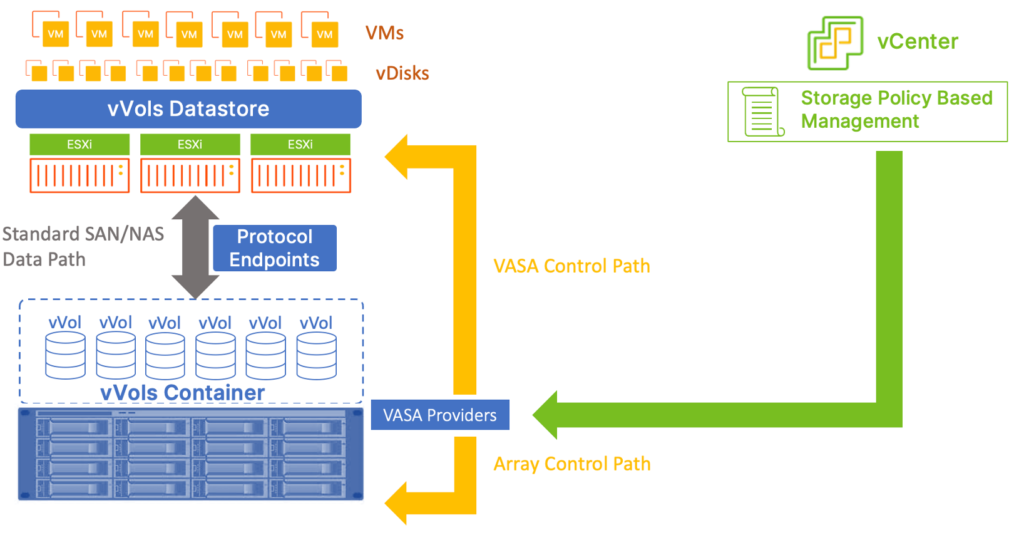
Basic vVols Logical View

So…for the last 8 years, vVols have been part of the core SDDC stack. The Storage Policy Based Management (SPBM) policy engine has been a mainstream feature in vSphere for a significant amount of time. Numerous best-in-class storage and data protection solutions now support vVols. We can’t consider vVols to be a fringe or nouveau feature any longer. So, now in 2023, doesn’t it make sense to deploy the powerful capabilities in this core feature? Let’s talk about some of the features that are especially relevant today.

vVols Technology has matured

Let’s face it – when vVols were first launched, things were a little rough around the edges. Scale and performance were a problem. Solutions integrations were sparse. And there weren’t a lot of platforms that supported vVols. 

In 2023, things have evolved. The performance/scale/resiliency attributes in vSphere (especially in vSphere 8u1) are very refined. Many of the core innovations in vSphere 8 are focused on vVols and the roadmap looks amazing. There are numerous great storage platforms out there that support vVols. Lots of amazing backup solutions are vVols ready. And most industry-leading monitoring/reporting solutions support vVols. 

Efficiency through Automation

I talk to numerous IT organizations every week and I consistently hear that teams are interested in automation as a means to add efficiency to routine operations. vVols and SPBM offer built-in SDDC automation where you can easily and flexibly apply data service policies to VMs and even individual disks. This means that you can create and enforce consistent SLAs easily, AND you can rely on vSphere policy enforcement to keep things tight. Changing data services policies (to adapt to a changing set of of business requirements) is as easy as applying a new SPBM policy! And if SPBM can’t do it, it is easy to leverage PowerCLI and REST API to operationalize your blueprints.
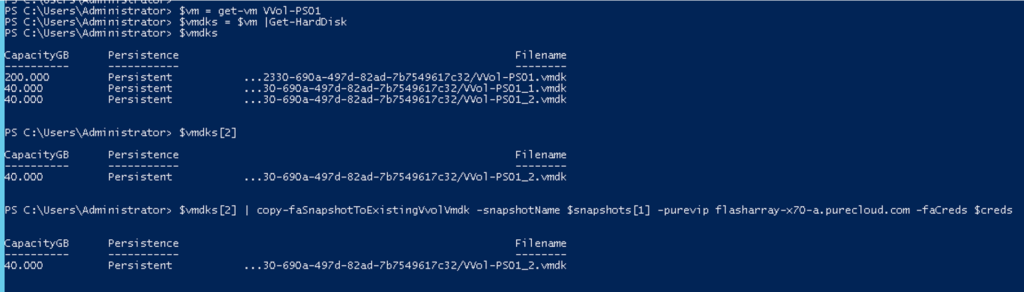
PowerCLI and vVols automation magic

Operational Rigor and Consistency

From accurate workload placement to consistent policy-based assignment of data protection services, vVols SPBM can lead to more consistent services that can lead to greater consistency and uniformity of services. This leads to a consistent SDDC foundation and better shot at true intrinsic security. Entropy and sloppiness in storage service configurations can make it harder to spot data service policy violations. An application server that is classified as production could be better protected from malware attacks if a “snapshot locally every hour” policy is enforced. And SPBM and vVols make this easy!

Myriad options available with SPBM Policies!

Silos as barriers

The divide between storage and virtualization teams is much less today. In the good old days, there was a organizational fence between storage and virtualization teams. These days I’m seeing fewer and fewer operational silos between storage and virtualization teams. The operational aspects of vVols shift the way that storage capacity is consumed and the way that data services policies are assigned. Virtualization ops teams are put in direct control of many functions that were the responsibility of the storage teams in the VMFS age. As IT organizations become less specialized, it is far easier for vVols to be introduced without causing tension and angst in IT camps and silos.

Are the days of tech silos over?

Increased efficiency at scale

With vVols we can enjoy better efficiency in allocating capacity with vVols (provision required vDisk capacity and not a bunch of VMFS overhead). It is not uncommon to see a 10 to 15% reduction in capacity consumption when the same workload is moved from VMFS to vVols. I see this routinely when working with small and large customers. 

The performance benefits of vVols can also be significant. with storage provider based snapshots is huge. This VMware whitepaper provides weighty arguments in favor of vVols based storage if virtual machine snapshots are employed – https://tinyurl.com/2adjn4eu The comparison graphs that show VMFS versus vVols performance when vVols are present is eye-opening! Other performance benefits can come from thinks like vDisk level QoS policies, where IO or throughput limits can be set and enforced. What a great way to reduce noisy neighbor issues!

Seriously – you need to read this amazing VMware paper!

Telemetry and metrics

This is one of things that I find the most compelling about vVols in 2023. I love me some data and vVols lets us derive performance and capacity insights at a VM and vDisk level of granularity. With VMFS, we can’t easily see back-end performance and capacity utilization statistics or trends when tens or hundreds of VMs are deployed on a shared datastore. Since vVols operate as individual volumes, we get to enjoy more granular views of storage stats. And with modern data services platforms like Pure Storage, we present these statistics right in the vSphere Web Client via our plugin integration. This means that an operator doesn’t need to access a backend storage interface to consume these stats – they are right there in the vCenter UI and available via REST API as well!

vDisk level telemetry is a game changer!

Summary

So, why are we still talking about vVols in 2023?

The efficiency, automation, and telemetry benefits that come with vVols help us more easily adopt a cloud operating model. In the same way that large service providers and public clouds operate efficiently, consistently, and securely – modern IT organizations desire the same operational capabilities. vVols have matured and are now considered as a core vSphere feature. It’s a great time to take ‘em for a spin!


Categories
Career

Micro-Sprints

I juggle a lot of tasks. I get distracted easily. I have some tough deadlines. My priorities are constantly being shuffled. My phone and IM messages never stop. This sound like you or someone you know? If so, please read on.

As I get older, and perhaps a bit wiser, I’ve started to fixate on the idea of “doing less but doing it better”. Instead of trying to juggle 9 balls poorly, why not learn to juggle 2 or 3 balls really well? I’ve always admired the productive software development teams that I’ve worked with and their ability to focus on fewer dev tasks but execute them crisply and quickly. Here is a great article that describes the difference between Agile principles versus methodologies: https://dev.to/danwright_dev/focus-on-the-principles-and-not-the-methodology-when-in-an-agile-environment—or-just-be-more-lean-2of7

So…I came across the concept of a “micro-sprint” that is similar, in principle, to an Agile-based team sprint. The idea, as an individual, is to focus on one thing for a short duration of time and fixate on it. This concept has probably been around for ages, but it became a popular topic in the 1980’s when Francesco Cirillo introduced the “pomodoro technique” to the time management community: https://en.wikipedia.org/wiki/Pomodoro_Technique The idea is to focus on one thing for a short burst of work-time, then take a break, then repeat. And you use a simple timer and self-discipline to guide you in your focus.

Wow, this is such a simple method! But, how the heck do I pull off a 25-minute pomodoro sprint? How do I block phone and web distractions from ruining my sprint? Well – I found a few cool applications. The coolest (if you’re on a Mac) is this one: https://heyfocus.com/docs/features/pomodoro-timer/ What I love is that when I start my sprint (custom duration, but I usually go for 30 mins), I can specify what Mac apps and what web-pages are a distraction and then disable access until my sprint is complete. The applications close and re-launch based on the timer. Any attempt to open the distracting app/site and I get a friendly reminder about my current sprint. Heads up, this isn’t a free app. But it has saved me a ton of wasted work hours and has more than paid for itself.

https://tomato-timer.com/ is a simple, free web-based tool to regulate your sprints. It works well in Chrome and integrates with OS X notifications. And it has some pretty cool keyboard shortcuts for controls. It is free, it is cool, check it out!

And if you are on Windows, boom! I just found out that Focus is available in the Microsoft app store. https://www.microsoft.com/en-us/p/focus-10/9nblggh5g2xh?activetab=pivot%3aoverviewtab I have not played with it. I don’t know how well it works. It looks like it is free.

OK, looks like my 25-minute sprint is done. Time to take a quick coffee break and then start my next “pomodoro”!

Categories
Career

What’s in your geek bag?

I travel quite a bit for geek work. I spend way too much time on Alaska Airlines planes and in Marriott hotel rooms. Over the years, lots of very smart co-workers (and fellow travelers) have taught me a lot about what to pack in my geek bag.

I try to be very prepared for travel drama: the 3-day trip that turns into a 5-day trip; the random Spring blizzard; the bored waiting for a delayed flight hellscape; the back of the Uber presentation/demo to a key customer; you get the idea.

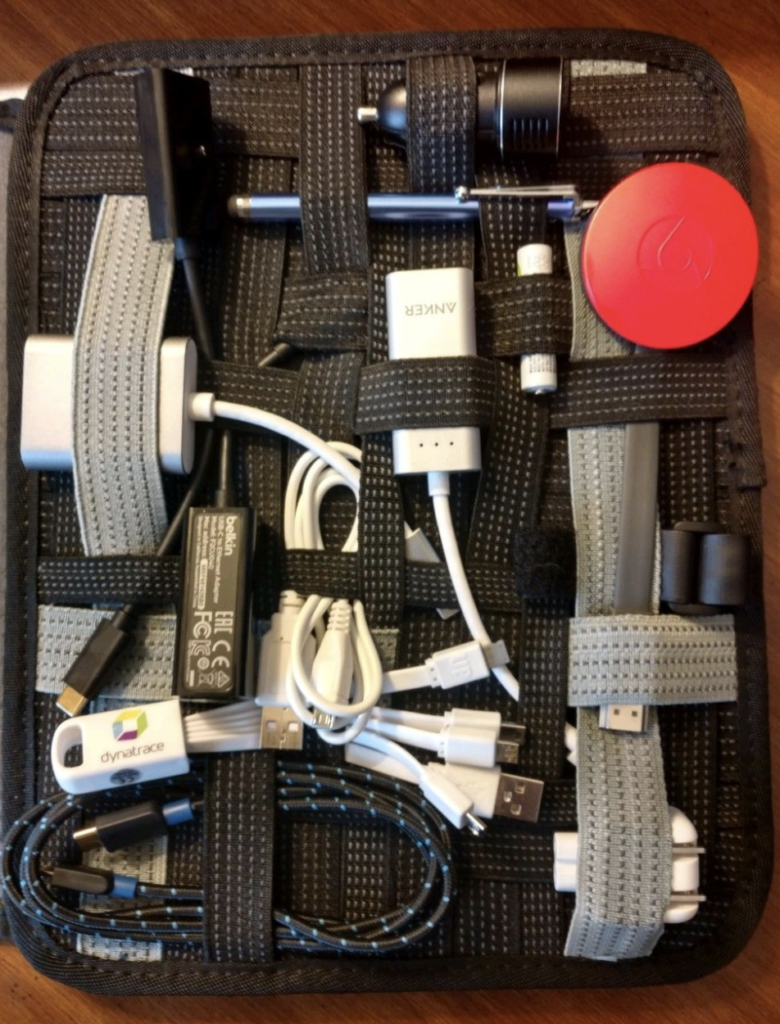
I like to pack quality gear and I like to pack it the same way every time in my geek bag. I want to be able to quickly find my cable or device without having to dig around in my bag. Sometimes when I’m super tired, I just don’t have the energy to dig around in my geek bag. Also, I find that when I pack everything the same way every time, I tend to lose less gear!

Here’s my typical bag contents:

  • EBags model 5808, laptop backpack
  • Cocoon Grid (for cable management) – https://tinyurl.com/y56rqdtf
  • Laptop (MBP 13”)
  • Apple iPad Pro
  • Anker Portable Battery – https://tinyurl.com/y24bggzm
  • Google Pixel Buds Pro
  • Bose QuietComfort 35 Noise-canceling headphones (amazing)
  • Logitech Spotlight Remote – https://tinyurl.com/y6qtg6nf
  • Compact Travel Surge Protector with USB ports – https://tinyurl.com/3p5pdhrt
  • Small cloth bag with 4 different colors of dry-erase markers (for whiteboards)
  • HDMI display adapter for my laptop
  • 2 charge cables for IPAD (1 usb, 1 usb-c)
  • 2 charge cables for phone (1 usb, 1 usb-c)
  • 12V cigarette lighter USB for rental car
  • 2 x 256 thumb drives (usb, usb-c)
  • Laptop power supply
  • Lens cleaning cloth
  • Sunglasses
  • Small LED headlamp
  • Wallet
  • Corporate Badge (as needed)
  • Pens/Pencils
  • Business cards
  • Tile Pro – hidden in my bag (small insurance policy for stolen bag)
  • Cliff Bar or Kind Bar (never know when you’re going to miss breakfast or lunch)
  • 2 packets of Starbucks Via instant coffee (b/c you never know)
  • Optional / I don’t always bring:
  • Microsoft Bluetooth Arc Mouse (I don’t bring this often, but it is pretty sweet)
  • Pill bottle with (Ibuprofen, immodium, tums, pepto)
  • Double wall water bottle

About bags for work travel:

If you travel for work regularly and especially if you travel by air and/or train – make sure to invest in the highest quality luggage that you can afford. Cheap bags will fail on you when you need them the most. Look for luggage sales, especially during holiday sales at major department stores. Read as many bag reviews as you can.

Categories
Career

Tech Preso Prep Checklist

I thought I’d share my updated checklist that I use when giving tech demos/presentations. I do this several times daily for work and have memorized most of this, but I thought I’d share it with others.

I’ve broken this out for both in-person and virtual presentations. Please add comments and share YOUR tips and tricks.

In Person Meeting Checklist

  1. Get to the meeting location early!
  2. Have your presentation saved to multiple devices (just in case)
  3. If doing an online presentation, make sure you have solid network connectivity. 
  4. If doing a demo, make sure you have an offline version (or video)
  5. Make sure you have the appropriate display adapter (have ‘em all in your geek bag)
  6. Bring your presentation remote (and dongle if applicable)
  7. Connect to projector and make sure things display properly. Advance a few slides and make sure things are looking good.
  8. Disable all OS apps with notifications ( I use “Do not disturb” in Mac OS notifications)
  9. Disable apps with notifications (slack, teams, etc)
  10. Close all applications, except for what you’ll be using
  11. Shut down communications apps like email, Slack, Teams
  12. If your OS supports multi-screen, put each application on its own desktop so that you can quickly switch between apps
  13. Always use power cable for laptop during presos/demos. Having your laptop die during a preso is not fun
  14. If doing a demo, connect to WiFi and VPN
  15. If doing browser-based demo, hide or mask your bookmarks bar. Also, close those 83 tabs you have open
  16. Put your phone on DoNotDisturb or mute
  17. Have a glass or bottle of water handy
  18. If white-boarding, have dry erase markers and eraser at the ready
  19. Arrive in room before attendees and greet them as they take their seats 
  20. Take a few deep, relaxing breaths

Virtual / Online Meeting Checklist

  1. Get to the web virtual room early – especially if you have to download an app that you don’t use regularly
  2. Prior to the meeting, check your camera / microphone / speaker. Most apps have a mechanism to let you do this before joining.
  3. If you are on camera, set up your background /filters/ lighting
  4. I use a standing desk and ALWAYS stand when I’m meeting with others. I find it gives me more focus and energy.
  5. Check your appearance on screen (make sure you’re looking smashing!)
  6. If you are doing a live demo or accessing web resources, make sure you are on the right network. If you need a VPN, get logged on now.
  7. If doing a demo, make sure you have an offline or video version.
  8. If you use multiple displays, make sure you know which display you will screen share.
  9. Advance a few slides and make sure things are looking good.
  10. Disable all OS apps with notifications ( I use “Do not disturb” in Mac OS notifications)
  11. Disable apps with notifications (slack, teams, etc)
  12. Close all applications, except for what you’ll be using
  13. Shut down communications apps like email, Slack, Teams (NOTE – if you need to message during a meeting, make sure notifications will not be a distraction)
  14. If your OS supports multi-screen, put each application on its own desktop so that you can quickly switch between apps
  15. Always use power cable for laptop during presos/demos. Having your laptop die during a preso is not fun
  16. If doing browser-based demo, hide or mask your bookmarks bar. Also, close those 83 tabs you have open!
  17. Put your phone on DoNotDisturb or mute
  18. Arrive to the virtual room early and greet other attendees when they arrive.
  19. Have a glass or bottle of water handy
  20. Take a few deep, relaxing breaths

Your next in-person or virtual presentation is going to be awesome. Have fun with it!